
Last Updated: July 30, 2023
How to Delete an eSIM from an iPhone
Wondering how to delete an eSIM from your iPhone?
The following are the simple steps you need to delete your eSim:
- Go to Settings on your iPhone
- Click on “Cellular Data” or “Mobile Data” (Depending on your region)
- Scroll down to SIMs and tap on the eSIM you wish to delete
- Tap on “Delete eSIM”
- Confirm by tapping “Delete eSIM” at the bottom
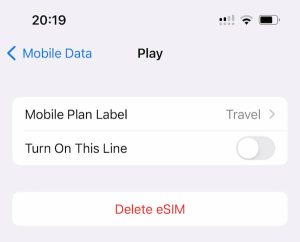
Deleting an eSIM from an iPhone
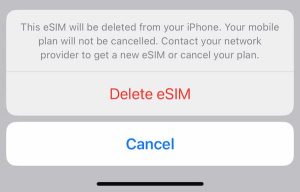
Confirm eSIM deletion from your iPhone
You may need to choose an alternative line once the eSIM is deleted.
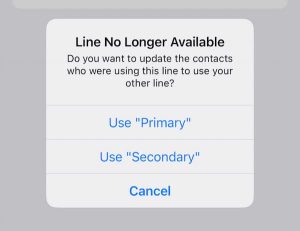
Choose alternate line
Be aware that deleting your eSIM has no effect on your cellular data plan. If you wish to cancel your plan with your eSIM provider, you need to do so directly with them.
